Better Stata Graphing Scripts
Jim Tyson
Intro
Stata graphing is easy if you use the interactive graph editor.
Stata graphing is hard if you script. The documentation is exhaustive and highly structured. And a complete rabbit hole. The cheatsheet is a great help!
You should script because graphs that are scripted are
- repeatable;
- modifiable;
- programmatically exportable to Word, HTML and so on.
The problem is remembering both the huge variety of options available (1,700?) to what are at base a small number of basic graphing commands, and knowing which options can apply to which graph types. I haven’t mastered either of these issues.
The cheat sheets really help.
https://www.dropbox.com/s/689lovb5vf5meyt/statacheatsheets.pdf?dl=0
Instead, I want to show you some simpler and then some slightly more complicated graph scripts with explanations of the options and then explain how to export your output to reports.
You should book mark the Stata graph gallery.
What will you learn?
We will cover some basic graph editing using the graph editor/menus, just to get an idea of what Stata graphs can look like and some of the options we can change.
We will then cover creating and modifying graphs in scripts including
adding adornment to graphs, such as titles, subtitles, notes and
captions, modifying appearance such as the shape and colour of markers
and using by(), over() and
separate to produce faceted graphs and subplots and to
selectively modify graph objects. You will also be introduced to the
very basics of Stata’s graph schemes.
Finally you will learn the effective way to export graphs from scripts to Word documents and how to create several graphs and export them in a script loop.
So, first, we will look at using the graph editor to understand the alternative to scripting.
Exercise
Organise your work
It is very important that you make a folder system when scripting graphs (or scripting anything).
When you run a script that must read, or output data or a graph or document, it will by default read and write from the current working directory. If it does not find what it is looking for in that directory, then the script will fail.
Make a project folder for the work you will do in this session.
Change to the project folder so that it is the current working directory.
Make a graphs (or images, or charts) folder to save the graphs you create.
Import the data from
https://www.ucl.ac.uk/~ccaajim/medtrial.csvusing the Stata procedure import delimited.
Use the following code to add value labels to the variable
gender:
 label define genderl 1 "Male" 2 "Female"
 label values gender genderl
Use the commands desc and codebook to
examine the data set.
Read before doing the next exercise tasks!
You may need to do some research on how to encode string variables. All the information you require is in Stata help.
You may benefit from installing the user-contributed code catplot from SSC to make bar plots, but it is not necessary.
Use the Stata grahics menu to make the following
plots:
- a pie chart of frequencies of
gender - a bar chart of frequencies of
smoker - a histogram of
hbefore - a histogram of
hafterwith subplots bygender
For the last of these, with the graph window open, open the graph
editor and change the colour of the bars (plotregion 1, plot 1) and the
bar borders to reddish. Save the plot to a png file.
Basic types of Stata graph
- twoway plots
- scatterplots;
- line plots;
- fit plots;
- fit plots with confidence intervals;
- area plots;
- bar plots;
- range plots;
- distribution plots
- scatterplot matrices
- bar charts
- box plots
- dot plots
- pie charts
The basic graph command and some simple examples
The most basic command for creating graphs and charts in Stata is
graph. This command has a number of sub-commands and
options. The major sub-commands describe different varieties of plot -
such as twoway, box plot, and the sub-types of twoway such as scatter
and line. (For some reason there is also a small collection of graphs
that are independent of either graph or twoway
including histogram.)
Exercise
Create a new do file and add the following lines of code:
sysuse auto, clear
hist mpg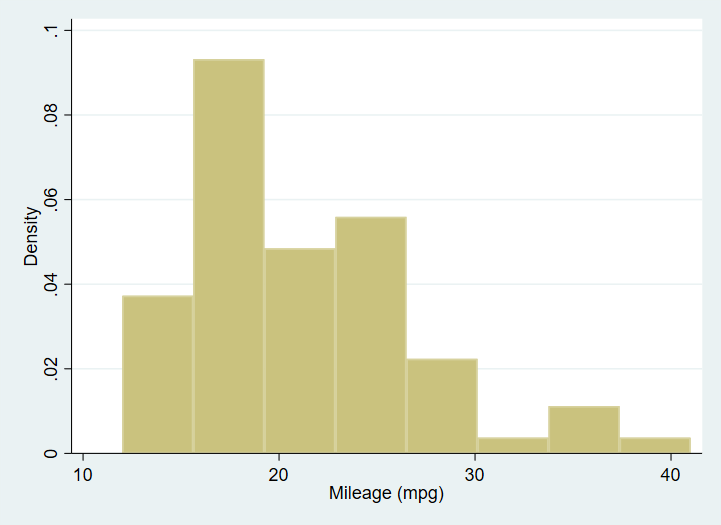
Open the graph editor and change the backgroud colour of the graph.
Creating a graph adding elements and changing defaults: box plot examples
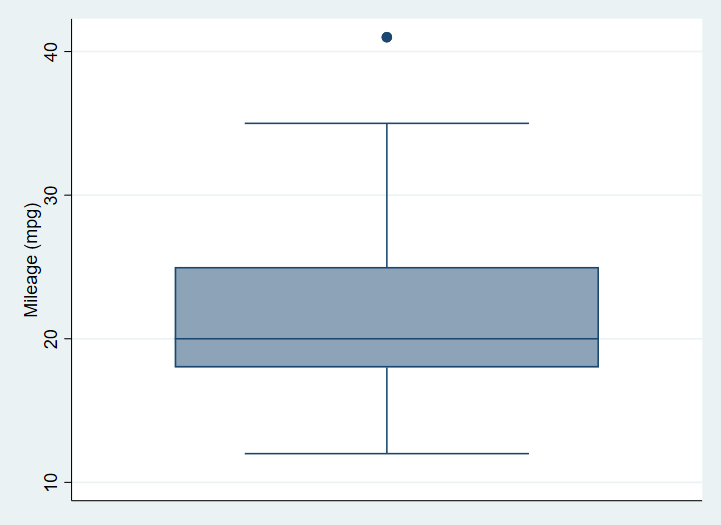
Next an equally simple box plot:
graph box mpg
Exercise
Using the data in the file medtrial.csv on https://www.ucl.ac.uk/~ccaajim/, create a box plot of
the variable hafter.
Use the option nooutsides to block the graphing of
extreme values.
Adornments
This graph has no options specified. We begin by specifying a Title.
When creating a graph from a script, it makes code easier to read if
each option is on a separate line, and if we indent options. To break a
command over more than one line in a Stata do file, we must use the line
extender code: ///.
sysuse auto

graph box mpg, ///
  title("A Simple Box Plot")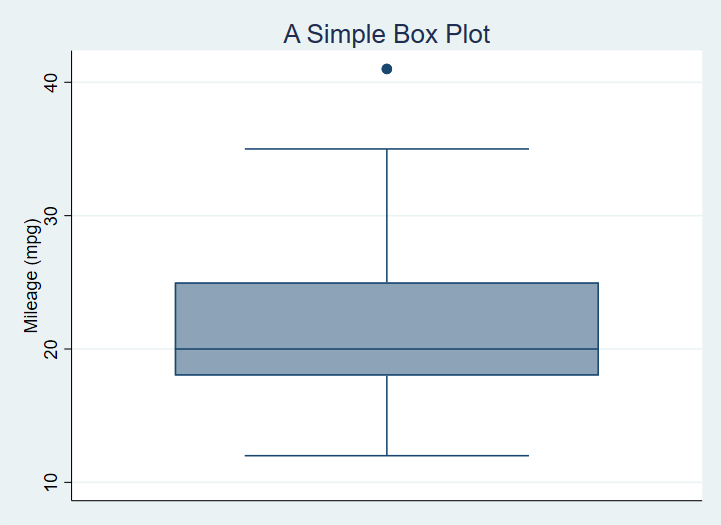
Now, we add a sub-title, caption and a note on the graph with instructions for position and ring:
sysuse auto

graph box mpg, ///
  title("A Simple Box Plot", position(12) ring(1)) ///
  subtitle("There is only one group in this graph.", ring(0)) ///
  note("In later graphs we will subset the data.") ///
  caption("This is the caption or our first graph.")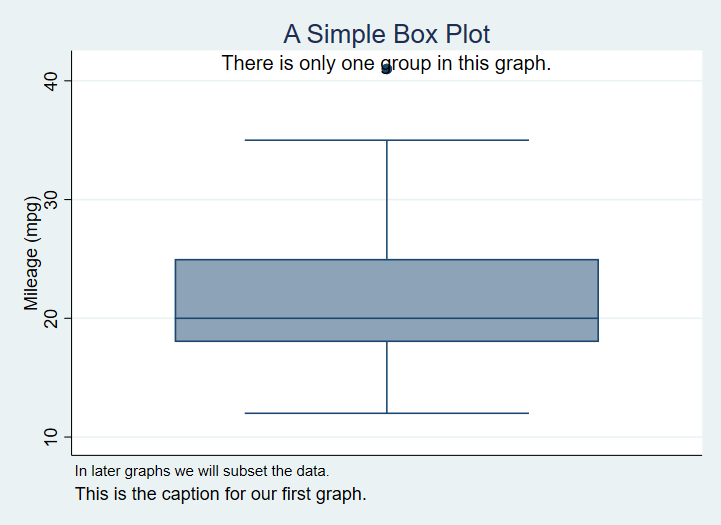
The position option is a clock number and
ring is 0 or 1, indicating inside or outside the plot
region. You should experiment with the ring() option (0
or 1).
Exercise
Using the medtrial data set, create a box plot of each of hbefore and hafter.
Add to each the title “Plasma concentrations of H”, with the appropriate subtitle indicating whether the measure is pre or post treatment.
Subset the data
No we subset the data using the categorical variable
foreign.
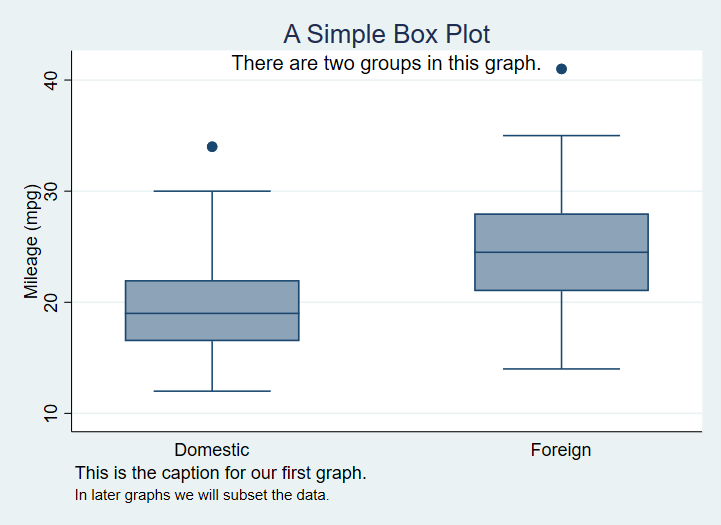
graph box mpg, ///
  title("A Simple Box Plot", position(12) ring(1)) ///
  note("In later graphs we will subset the data.") ///
  caption("This is the caption for our first graph.", ring(1)) ///
  subtitle("There are two groups in this graph.", ring(0)) ///
  over(foreign)
Some options must occur in specific positions. You
can add nooutsides before title() in this code,
but not after over().
Which produces1
We can modify this to exclude the ticks and grid lines - since this is a box plot we are only modifying the y-axis grid lines since no grid is the default for the x-axis.
sysuse auto

graph box mpg, ///
  title("A Simple Box Plot", position(12) ring(1)) ///
  note("In later graphs we will subset the data.") ///
  caption("This is the caption for our first graph.", ring(1)) ///
  subtitle("There are two groups in this graph.", ring(0)) ///
  over(foreign) ///
  ylabel(,nogrid noticks) ///
  asyvars
which produces

This also introduces the use of asyvars with
over(). This option chooses the first listed variable in
over() as the factor for grouping.
Exercise
Produce one graph showing box plots for hbefore and
hafter with appropriate title, for each level of
gender and differentiating the groups using color.
Exercise
Run the following lines of code from a new do file
import delimited "https://www.ucl.ac.uk/~ccaajim/medtrial.csv", clear
gen surname2 = surname if smoker=="Y"
scatter hbefore hafter , mlabel(surname2)
Change the code so that the points are labelled only where
gender is male.
Standardising your graphing options
using variables, graph_opts and
graph_opts_1 as examples, to standardize output.
https://dimewiki.worldbank.org/Stata_Coding_Practices:_Visualization
// For -twoway- graphs
global graph_opts ///
  title(, justification(left) color(black) span pos(11)) ///
  graphregion(color(white)) ///
  xscale(noline) xtit(,placement(left) justification(left)) ///
  yscale(noline) ylab(,angle(0) nogrid) ///
  legend(region(lc(none) fc(none)))

// For -graph- graphs
global graph_opts_1 ///
  title(, justification(left) color(black) span pos(11)) ///
  graphregion(color(white)) ///
  yscale(noline) ylab(,angle(0) nogrid) ///
  legend(region(lc(none) fc(none)))
Then use as in the following example
sysuse auto.dta , clear

scatter price mpg, ///
  ${graph_opts}
  graph draw , ysize(7)
  graph export "scatter.png" , width(4000)
Horizontal bars
We can switch to horizontal boxes with
sysuse auto, clear

graph hbox mpg, ///
 title("A Simple Box Plot") ///
 subtitle("There are two groups in this graph.") ///
 over(foreign)
And now we will introduce color by factor variable levels. Note that
the command that achieves this, asyvars, is technically
instructing Stata to treat each level the first grouping variable as a
separate y axis variable.
sysuse auto, clear

graph box mpg, ///
  title("A Simple Box Plot") ///
  subtitle("There are two groups in this graph.") ///
  over(foreign) ///
asyvars 
Here is the code for a graph with custom colours set for several of the plot regions.
graph box mpg, ///
  title("A Simple Box Plot") ///
  subtitle("There are two groups in this graph.") ///
  over(foreign) ///
  asyvars ///
  graphregion(fcolor(gs13)) ///
  plotregion(fcolor(cranberry)) ///
  plotregion(icolor(ltblue))
Produces

Here is the chart with some of the regions labelled with relevant code:

It is worth noting that the undocumented command bgcolor
appears to override custom color specifications, thus
graph box mpg, ///
  title("A Simple Box Plot") ///
  subtitle("There are two groups in this graph.") ///
  over(foreign) ///
  asyvars ///
  bgcolor(white)
  graphregion(fcolor(gs13)) ///
  plotregion(fcolor(cranberry)) ///
  plotregion(icolor(ltblue))
Adding elements and changing defaults: scatter plot examples
First the most basic scatter plot of two continuous variables:
sysuse auto

scatter mpg weight
This using Stata defaults produces:

In the next version, we first of all separate the mpg
values into groups based on the rep variable. The
? in mpg? below is a wildcard for the
numeric suffix of the list of mpg variables created by separate.

We also change the markers, but note we must add msymbol() specifications for each group.
sysuse auto, clear
separate mpg, by(rep)

scatter mpg? weight, ///
msymbol(O D T S X) ///
title("Miles per gallon as a function of Weight") ///
subtitle("Showing a plausibly strong, negative relationship") ///
plotregion(fcolor(bluishgray))
Exercise
Using the medtrial data, seperate the data in hafter by
smoker. Make a scatter plot of the new hafter?
variables against hbefore.
Apply different marker symbols to the two data groups. Add an appropriate title.
Using a Stata graph scheme
A Stata graph scheme is a collection of pre-determined choices you can apply easily to any Stata graph. All aspects of the appearance can be controlled from the scheme.
There are a number of built-in schemes available and there are also user contributed schemes.
In the code below, I apply the scheme plottig from the
scheme package blindschemes which I have previously
installed in Stata with the command
ssc install blindschemes, replace allNow the graph code:
sysuse auto

graph box mpg, ///
  title("A Simple Box Plot") ///
  subtitle("There are two groups in this graph.") ///
  over(foreign) ///
  asyvars ///
  scheme(plottig)
And the result:

This scheme is heavily inspired by the default appearance of graphs
produced by ggplot2.
And here is a scatter plot with the plotplain scheme
applied and the legend cleaned up a bit by applying variable labels:
sysuse auto, clear

separate mpg, by(rep)

label variable mpg1 "Fuel Consumption1"
label variable mpg2 "Fuel Consumption2"
label variable mpg3 "Fuel Consumption3"
label variable mpg4 "Fuel Consumption4"
label variable mpg5 "Fuel Consumption5"

scatter mpg? weight, ///
    msymbol(O S D T X) ///
    title("Miles per gallon as a function of Weight") ///
    subtitle("Showing a plausibly strong, negative relationship") ///
    plotregion(fcolor(bluishgray)) ///
    scheme(plottig)
Once you are familiar with using schemes and with the graph options you may consider using these guidelines to modify a scheme to suit your own preferences.
Exporting the graph to Word from your script
The following code creates a box plot with a variety of options set, and saves the output as part of a Word document also created by the script.
sysuse auto, replace
cd "c:\Users\DELL\Documents\Data\Stata\TablesTutorial\StataGraphing\"
putdocx clear
putdocx begin

// Create paragraphs
putdocx paragraph
putdocx text ("Create and embed your graph"), style(Heading1)
putdocx paragraph
putdocx text ("This is a graph created by a script and exported to Word.")

// Embed a graph
graph box mpg, ///
  title("A Simple Box Plot") ///
  subtitle("There are two groups in this graph.") ///
  over(foreign) ///
  asyvars ///
  graphregion(fcolor(gs13)) ///
  plotregion(fcolor(cranberry)) ///
  plotregion(icolor(ltblue))

graph export "C:\Users\DELL\Documents\Data\Stata\TablesTutorial\StataGraphing\mgpbox7.png", as(png)

putdocx image "C:\Users\DELL\Documents\Data\Stata\TablesTutorial\StataGraphing\mgpbox7.png"

putdocx save myreport.docx, replace
As you continue to create visualistions you can change the otpion on
putdocx save from replace to
append.
Creating and exporting several graphs in a loop
There are often situations when we wish to create identical graphs for a number of variables or the same variable over or by different factors. In this case we can use a loop structure and a local macro in Stata to do the job for us.
Consider the code:
import delimited "https://www.ucl.ac.uk/~ccaajim/results.csv", clear

local exams "maths english history"

foreach exam in `exams' {
    graph box `exam'
    graph export  "`exam'.png", replace
}
This code takes three variables from a data set and in a
foreach loop creates then exports a boxplot of that
variable.
The code should be easily modifiable and in may circumstances will considerably reduce the number of lines of code written.
Remember to distinguish by() and over().↩︎